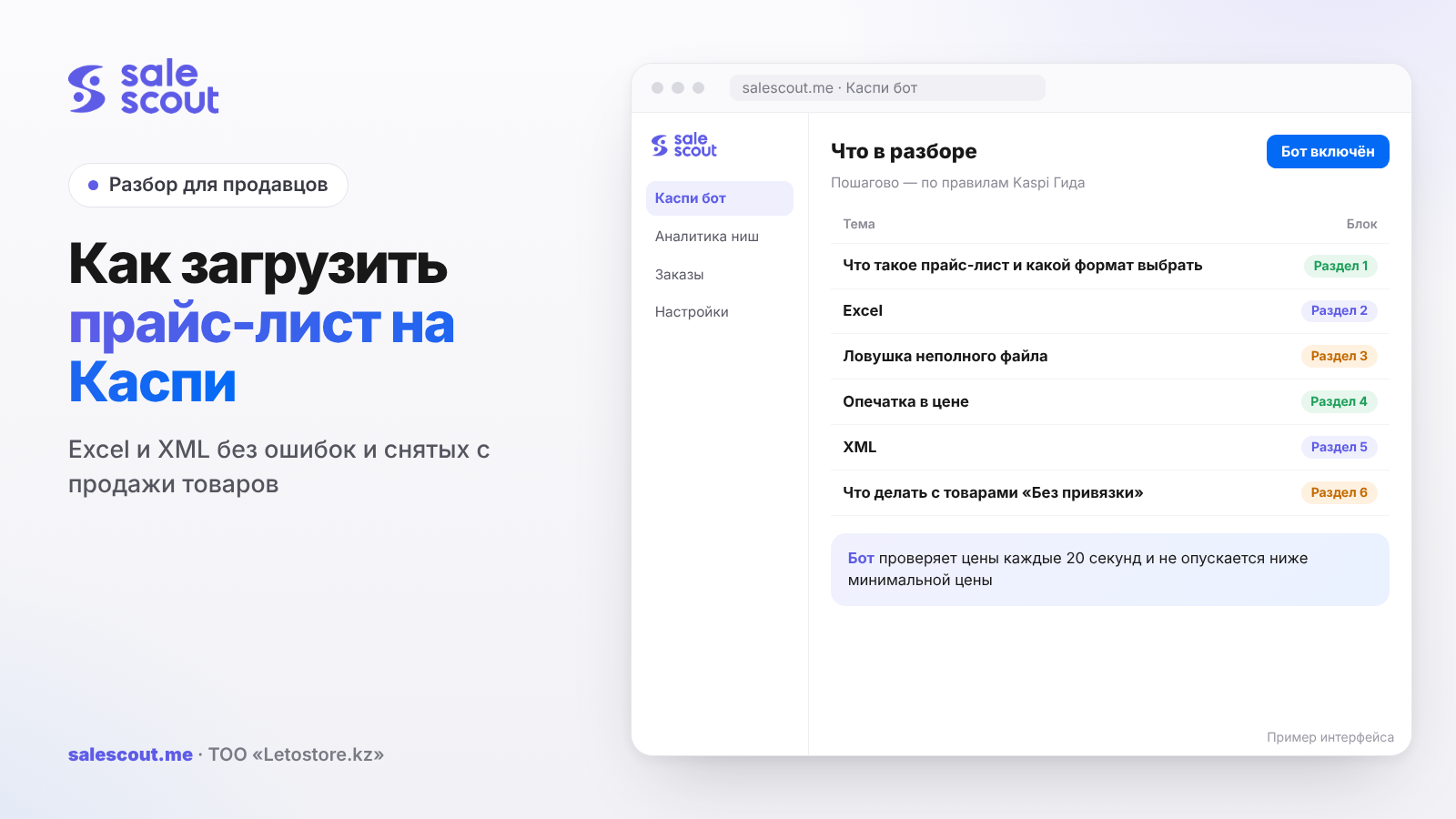
A Kaspi price list can only be uploaded in the web version of the seller cabinet: either as an Excel file by hand or as a link to an XML file that Kaspi collects on its own every 60 minutes. With Excel, the catalog updates within 15 minutes of the upload. The hard part isn't the "Upload" button, it's the small stuff: five mandatory warehouse columns, a ban on touching the headers, and a rule that takes any product you forgot to include in the file off sale.
In short
- Excel works as long as you have up to five warehouses named PP1–PP5 and one price for every city. If prices or preorder terms differ by city, you can't download the Excel file and XML is the only option.
- The most expensive mistake is an incomplete file. A product you previously added by hand or through an earlier price list, but left out of the new one, will be taken off sale by Kaspi.
- Upload errors are shown under Товары → История загрузок, on the «Обработано» tab. Check it after every upload, not when you notice orders dropping.
- A price typo is more dangerous than a missing row. A single "price is not below the minimum price" formula in Excel catches an extra or missing zero before you upload.
What a price list is and which format to choose
Two formats and their limits
In Kaspi, the price list is a web-cabinet tool for changing prices, stating stock per warehouse and putting many products on sale at once (q2961, updated Mar 12, 2026). There are two formats, and the choice between them is dictated by how your store is set up, not by taste.
| Excel | XML | |
|---|---|---|
| Who updates it | You, by uploading the file | Kaspi fetches the file from your link |
| When it applies | Within 15 minutes of upload | Every 60 minutes, if the file has changed |
| Warehouses | Exactly five columns, PP1–PP5 | Any warehouse codes (storeId) |
| Different prices by city | No | Yes, via the cityprices block |
| What you need | A computer and care | Your own http/https server and an export from your accounting system |
The Excel file can't be downloaded if you have different prices or preorder terms by city, more than five warehouses, or warehouses named anything other than PP1–PP5 (q4025, updated Aug 8, 2025). A 40-item store with one warehouse in Almaty can live on Excel just fine. A chain with outlets in three cities and different prices can't.
Where to find the file
You download a ready file with your catalog under Управление товарами → Прайс-лист → «Скачать в Excel» or «Скачать в XML». You can take the blank template, but with a catalog export you're less likely to lose products, because all your items are already in it.
Excel: how to fill it in and upload it
The columns
Kaspi describes the columns like this (q3348, updated Jun 16, 2026):
| Column | What to enter | Where people trip up |
|---|---|---|
| SKU | Your own item code | The same code on two different products |
| model | Name and variant | Writing the same model differently in different uploads |
| brand | Brand or manufacturer | «Без бренда» (no brand) is allowed only if the product doesn't need a sales permit |
| price | Price in tenge | Spaces, tiyn, an extra zero |
| PP1–PP5 | Quantity at each warehouse, or yes/no | Deleting the "extra" columns when you have fewer than five warehouses |
| preorder | Preorder days, 30 at most | Entering 0 instead of leaving the cell empty |
There's a direct requirement for PP1–PP5: all five columns must be in the file, even if you only have one warehouse. Leave the extra ones empty. The number in a cell caps orders, so a buyer can't order more than you've listed. Instead of a number you can write "yes" if the product is at that location and "no" if it isn't. With "yes" you lose protection against overselling, so for fast-moving items a number is better.
The preorder logic works like this: the number of days is added to the pickup date or the delivery time. If you need a preorder, enter the days; if not, leave the cell empty. How to pick the term and why preorder cancellations are risky is covered in the article on preorders on Kaspi. By the way, a preorder is a full sales mode, not a workaround: Kaspi's rules ban listing products you don't have in stock, with preorder items being the exception (rules, clause 1.10, updated Sep 30, 2026).
One more detail from the same Guide page: self-pickup isn't available to partners who joined the Kaspi.kz Store after June 15, 2026. If that's you, the file still needs warehouses, because stock is counted against them.
Five rules that will stop the file from uploading
Kaspi lists them itself: don't change the number of sheets, put the data on the first sheet, don't delete or add columns, don't rename the SKU, model, brand, price, PP1–PP5, preorder headers, don't indent with the Tab key, and don't use line breaks inside a cell (q2962, updated Oct 24, 2025).
The sneakiest one is the line break. You can't see it if the cell is narrow. A name copied from a supplier's website often brings both a line break and a Tab with it. Before uploading, run the model column through Find and Replace or the CLEAN function (ПЕЧСИМВ in Russian Excel), which strips non-printing characters.
Uploading and checking the result
Next, click «Загрузить прайс-лист», pick the file, and the catalog updates within 15 minutes. Errors are under Товары → История загрузок: pick the upload, and details are on the «Обработано» tab (q2962).
A habit that pays for itself: 15–20 minutes after uploading, open «Обработано» and compare the number of processed rows with the number of rows in your file. If the file has 312 products and 297 were processed, fifteen items either kept their old prices or dropped out. Better to find that out now than from a buyer in the evening.
The incomplete-file trap: why products get taken off sale
What the Guide says
The price-list description has a sentence that's easy to skim past: if you previously uploaded or manually added a product, it has to be included in the price list, or it will be taken off sale (q2962). In other words, the file describes your whole range, not just the changes. If it's not in the file, it's not in the shop window.
A typical case: a manager downloaded the price list a month ago, you've since added twenty new items by hand, and today he fixed five prices in the old file and uploaded it. Five prices updated. Twenty new products went off sale.
What that costs
Hypothetical example, not a client case. Assumptions: 20 products drop off sale for two days, each sells on average once every two days, and net profit per sale is 2,500 ₸.
| Metric | Value |
|---|---|
| Products off sale | 20 |
| Days of downtime | 2 |
| Sales per product per day | 0.5 |
| Lost sales | 20 × 2 × 0.5 = 20 |
| Profit per sale | 2,500 ₸ |
| Lost profit | 50,000 ₸ |
And that's before counting the competitor who settled into the product card over those days. The protection is simple: always start from a fresh «Скачать в Excel» export, not from the old file on your desktop.
A price typo: a check formula to run before uploading
Why it's worse than a missing row
A product that drops out just doesn't sell. A product priced at 1,299 ₸ instead of 12,990 ₸ does sell, and briskly, because it immediately becomes first in the card. Every such order is roughly eleven and a half thousand in the red, and you can't cancel it by citing a pricing error without consequences: the rules forbid giving a false cancellation reason or asking the buyer to cancel (clause 1.2). There's an article on how cancellations hit store metrics: order cancellations on Kaspi.
A checker column
Before uploading, add the calculation on a separate sheet (you can't create new columns on the first sheet). For each SKU you need a minimum price, below which you're selling at a loss:
Minimum price = (purchase cost + delivery incl. VAT) ÷ (1 − commission − tax rate)
Hypothetical example, not a client case. Assumptions: a 12.5% commission including VAT, the rate for most categories (q1344 and the 2026 tariff table); a sole proprietor (IE) on the simplified regime in Almaty at 3% (BES.media); in-city Kaspi Delivery for an order from 10,000 ₸ up to 5 kg at 1,099 ₸ before VAT, 1,275 ₸ with 16% VAT (q2288, updated Jun 16, 2026).
| SKU | Purchase cost | Minimum price | Price in file | Result |
|---|---|---|---|---|
| A-101 | 7,000 ₸ | 9,793 ₸ | 12,990 ₸ | ok |
| A-102 | 7,000 ₸ | 9,793 ₸ | 1,299 ₸ | ERROR |
| A-103 | 9,500 ₸ | 12,751 ₸ | 129,900 ₸ | check |
The math for A-101: (7,000 + 1,275) ÷ (1 − 0.125 − 0.03) = 8,275 ÷ 0.845 ≈ 9,793 ₸. For A-103: (9,500 + 1,275) ÷ 0.845 ≈ 12,751 ₸. Note that this formula holds for prices from 10,000 ₸; for cheaper products, use your own delivery tariff tier. More on counting every deduction from an order is in the article how not to sell at a loss on Kaspi.
In Excel the check looks like this: =ЕСЛИ(D2<C2;"ОШИБКА";ЕСЛИ(D2>C2*3;"проверить";"ок")) (in English Excel: =IF(D2<C2,"ERROR",IF(D2>C2*3,"check","ok"))), where C is the minimum price and D is the price in the list. The second condition catches an extra zero: in a normal product range, a price three times above the minimum is almost always a typo. The "three times" threshold is an assumption; tune it to your markup.
XML: automatic upload via a link
How the file is built
XML is for when the data has to update on its own: from 1C, warehouse software or your own script. The setup goes like this (q3251, updated Oct 24, 2025):
- Spin up an http or https server, or use an existing one.
- Put the XML file with your products there and copy the link.
- In the web cabinet: Товары → Загрузить прайс-лист → «Автоматическая загрузка», then paste the link.
- Set up your accounting system to update the file on the server automatically.
Every 60 minutes Kaspi fetches the file if it has changed. Each product has an offer tag with an sku attribute, model and brand tags, an availabilities block with available (yes/no), storeId, stockCount and preOrder attributes, and a price. The SKU is up to 20 characters, digits and Latin letters only, unique within the file. The warehouse code (storeId) is copied from the «Склады и магазины» section of the web cabinet.
One price or prices by city
There are two options for the price. The price tag, if the price is the same in every city or you sell in only one. The cityprices block with cityprice tags and a cityId attribute, if prices differ by city. The price is written including VAT, with no spaces, decimals or stray characters. Kaspi suggests getting city codes by sending a request to the Kaspi.kz Store API (the code attribute); the Guide's example uses 750000000 and 710000000.
There's a catch here: different prices and preorder terms for different warehouses can be set only in XML, and the warehouses have to be in different cities. Warehouses in the same city share one price and one preorder term (q2962). When it makes sense to split prices by city at all is covered in the article on different prices by city on Kaspi.
An hour is a long time
For stock, an hourly cycle is fine, since your accounting system knows the warehouse better than anyone. For the price in a product card where a competitor moves several times an evening, an hour is forever. And if someone else changes the price alongside the XML, the next file fetch will overwrite it. How to separate price sources so they don't fight each other is described in detail in the article how to automate prices on Kaspi.
What to do with "Без привязки" (unlinked) products
Where they come from
Products from the file that aren't on sale yet land in Нераспознанные товары → Без привязки, and you have to list them yourself (q3149, updated Mar 18, 2025). The price list passes on price and stock, but it doesn't link the product to a card.
Three ways to list them
- Link to an existing card. Pick the product and the card that matches its specs, then click «Добавить» (in the Kaspi Pay app, «Привязать к существующему»). The product goes on sale within 15 minutes.
- Create a new card. «Добавить новый товар», the category, the required fields marked with an asterisk, photos. Review takes up to 3 working days.
- Upload a template with new products. For a batch of new items: download the category template, enable macros, fill in the «attributes» sheet, put photos in an «images» folder (up to 1 MB each if there are many; names like 1234_1, 1234_2), zip it all up to 100 MB and upload. After review the products end up in «Сняты с продажи», where you set the price and stock.
Only link to someone else's card if the model, color and set match exactly. A mistake here costs more than it seems: the buyer gets something other than what they ordered, which directly breaks the rules (clause 3.1). How to build a card from scratch properly is laid out in the article how to create a product card on Kaspi.
A separate note on brands: some brands and categories can't be sold without a sales permit, and «Без бренда» in the brand column doesn't get around that. The Guide allows writing it only when no permit is needed.
Common mistakes when uploading a price list to Kaspi
- An old file instead of a fresh export. Everything you added after downloading it goes off sale. In our hypothetical example, twenty items gone for two days cost 50,000 ₸ in profit.
- Deleting columns PP3–PP5 because there's only one warehouse. A file with four or three warehouse columns doesn't match the template, and the update goes through with errors. The empty columns have to stay.
- A price with a space or tiyn. "12 990" or "12990,00" puts extra characters in a numeric field. Kaspi explicitly requires prices with no spaces or decimals (it says so outright for XML).
- A 0 in preorder. If you don't need a preorder, leave the cell empty. Kaspi reads any number as a term, and extra days on the delivery time scare buyers off.
- "yes" instead of a quantity on a fast seller. Kaspi doesn't know how many units you have and will take more orders than you have on the shelf. Then come cancellations, and those hit your quality metrics.
- Uploading and not opening «История загрузок». A partly processed file looks like a success. The gap between 312 rows in the file and 297 processed shows up only on the «Обработано» tab.
- XML and manual edits at the same time. A price you fix by hand in the cabinet lasts only until the next file fetch, so an hour at most.
Checklist: before uploading a price list
- The file was downloaded from the cabinet today, not pulled from an old folder.
- It contains every product that should be on sale, including ones added by hand.
- All five PP1–PP5 columns are in place, with the extra ones empty.
- The SKU, model, brand, price, PP1–PP5, preorder headers are untouched.
- The data is on the first sheet, with the same number of sheets as the template.
- Names have no line breaks or Tabs: the model column has been cleaned.
- Prices are whole numbers with no spaces; the checker column found no "ERROR".
- preorder is filled in only where a preorder is needed, and is no more than 30.
- The «Обработано» tab was checked 15–20 minutes after uploading.
- New items in «Без привязки» have been linked or sent for card creation.
Items 1 and 2 are the same safeguard, written twice on purpose. Almost every "my products vanished from Kaspi after the upload" story starts with an old file.
How to automate prices after uploading the price list
A price list holds your catalog and stock well, but in a competitive product card it updates the price once an hour at best. The SaleScout Kaspi bot checks prices every 20 seconds, keeps you at the top of the card and never goes below the minimum price you set. When a competitor raises their price or leaves the card, the bot raises your price to just below the next seller. The bot handles preorder items too, at no extra charge. You can try the bot free for 7 days, no card required.
Frequently asked questions about uploading a price list to Kaspi
How do I upload a price list to Kaspi?
Only in the web version of the seller cabinet. Download your catalog under Управление товарами → Прайс-лист → «Скачать в Excel», fill in SKU, model, brand, price, PP1–PP5 and preorder, click «Загрузить прайс-лист» and pick the file. The catalog updates within 15 minutes.
Why were my products taken off sale after I uploaded the price list?
Most likely they weren't in the file. The Kaspi Guide warns about this directly: a product you previously uploaded or added by hand has to be included in the price list, or it will be taken off sale. Start from a fresh catalog export every time.
Where can I see price-list upload errors on Kaspi?
Under Товары → История загрузок. Pick the upload you need, and the details will be on the «Обработано» tab.
What goes in the PP1–PP5 columns?
These are warehouses. Enter the quantity at each one, or "yes"/"no" for availability. All five columns have to be in the file even if you have one warehouse; leave the extra ones empty.
Why can't I download the price list in Excel?
Excel isn't available if you have different prices or preorder terms by city, more than five warehouses, or warehouses named anything other than PP1–PP5. In those cases you work with XML.
How often does Kaspi update prices from an XML price list?
Kaspi fetches the XML from your link every 60 minutes if the file has changed. A file uploaded by hand in Excel applies within 15 minutes.
What should I do with products in «Без привязки»?
List them yourself: link them to an existing card (the product appears within 15 minutes), create a new card (review takes up to 3 working days), or upload a template with several new products.
Can I set different prices by city in the price list?
Only in XML, through the cityprices block with a city code in cityId. Warehouses with different prices have to be in different cities, or they'll share one price.
Sources
All links checked Oct 23, 2026. The sources are in Russian; original titles are given with English translations.
- Kaspi Guide for partners. «Как загрузить прайс-лист на товары в Магазине на Kaspi.kz?» (How do I upload a price list for products in the Kaspi.kz Store?) — https://guide.kaspi.kz/partner/ru/shop/goods/price_list/q2962 (updated Oct 24, 2025)
- Kaspi Guide. «Как заполнить прайс-лист на товары…?» (How do I fill in a price list?) — https://guide.kaspi.kz/partner/ru/shop/goods/price_list/q3348 (updated Jun 16, 2026); «Как настроить автоматическую загрузку прайс-листа…?» (How do I set up automatic price-list upload?) — https://guide.kaspi.kz/partner/ru/shop/goods/price_list/q3251 (updated Oct 24, 2025); «Как скачать прайс-лист с моими товарами…?» (How do I download a price list with my products?) — https://guide.kaspi.kz/partner/ru/shop/goods/price_list/q4025 (updated Aug 8, 2025)
- Kaspi Guide. «Что такое прайс-лист в Магазине на Kaspi.kz?» (What is a price list in the Kaspi.kz Store?) — https://guide.kaspi.kz/partner/ru/shop/goods/general/q2961 (updated Mar 12, 2026); «Я загрузил прайс-лист… Как выставить их на продажу?» (I uploaded a price list… How do I put them on sale?) — https://guide.kaspi.kz/partner/ru/shop/goods/price_list/q3149 (updated Mar 18, 2025)
- Kaspi Guide. «Какие правила работы с Магазином на Kaspi.kz?» (What are the rules for working with the Kaspi.kz Store?) — https://guide.kaspi.kz/partner/ru/shop/conditions/q1342 (updated Sep 30, 2026)
- Kaspi Guide. «Какая комиссия за продажи в Магазине на Kaspi.kz?» (What is the sales commission in the Kaspi.kz Store?) — https://guide.kaspi.kz/partner/ru/shop/conditions/q1344 (updated Jan 6, 2026); «Сколько стоит Kaspi Доставка?» (How much does Kaspi Delivery cost?) — https://guide.kaspi.kz/partner/ru/shop/delivery/shipping/q2288 (updated Jun 16, 2026)
- Tax Code of the Republic of Kazakhstan, Article 503 «Ставки НДС» (VAT rates) — https://www.zakonpravo.kz/ru/statya-503-stavki-naloga-na-dobavlennuyu-stoimost-nalogovogo-kodeksa-respubliki-kazahstan
- BES.media. «В регионах Казахстана снизили налог по упрощёнке на 2026 год» (Simplified-regime tax cut in Kazakhstan's regions for 2026) — https://bes.media/news/v-regionah-kazahstana-snizili-nalog-po-uproshyonke-na-2026-god/
Bota, analyst
SaleScout is our company's product. Kaspi and Kaspi.kz are trademarks of Kaspi.kz JSC; SaleScout is not affiliated with Kaspi.